NodeTool Cloud is in alpha. Direct films and run workflows in the browser, on your own keys.NodeTool Cloud is in alpha. Try it →

Product
StudioCloud (alpha)AgentsNode-based workflowsAI video editorAI image editorStoryboardsMCP serverSupported modelsDownloadSolutions
DevelopersMarketingGame developmentLocal-firstResearchersAll solutionsResources
TemplatesRecipesPresetsAd libraryCompare alternativesFAQYour product catalog, as product videos
Upload the CSV your store exports. Catalog Motion animates each product's own photo with one look for the whole range, so every listing gets a clip that matches the rest.
Ships in Studio as two example apps: Catalog Motion and Catalog Motion with References. Runs on your own provider keys.
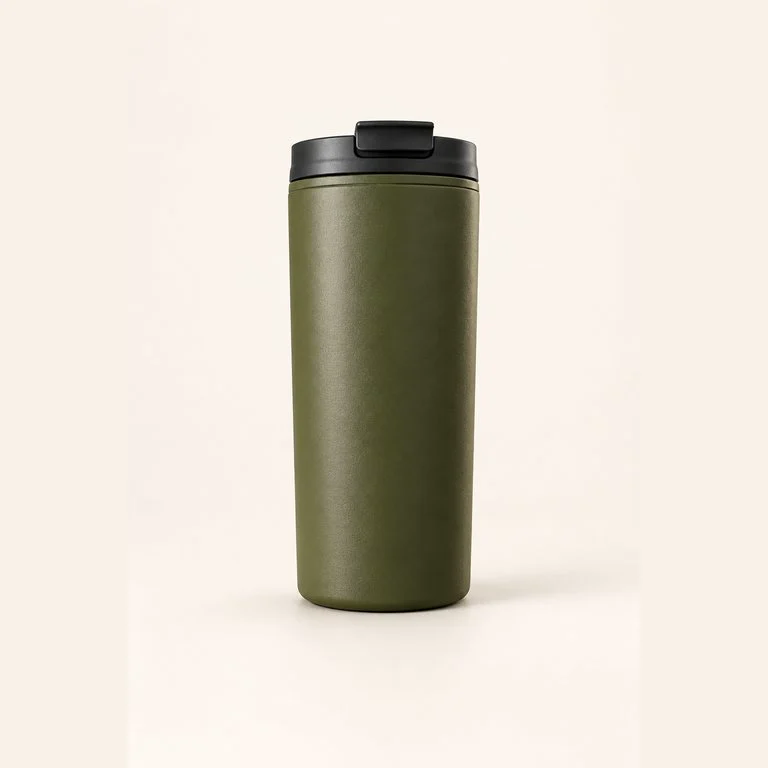 $34.00Trail TumblerTT-OLV-500 · olive green
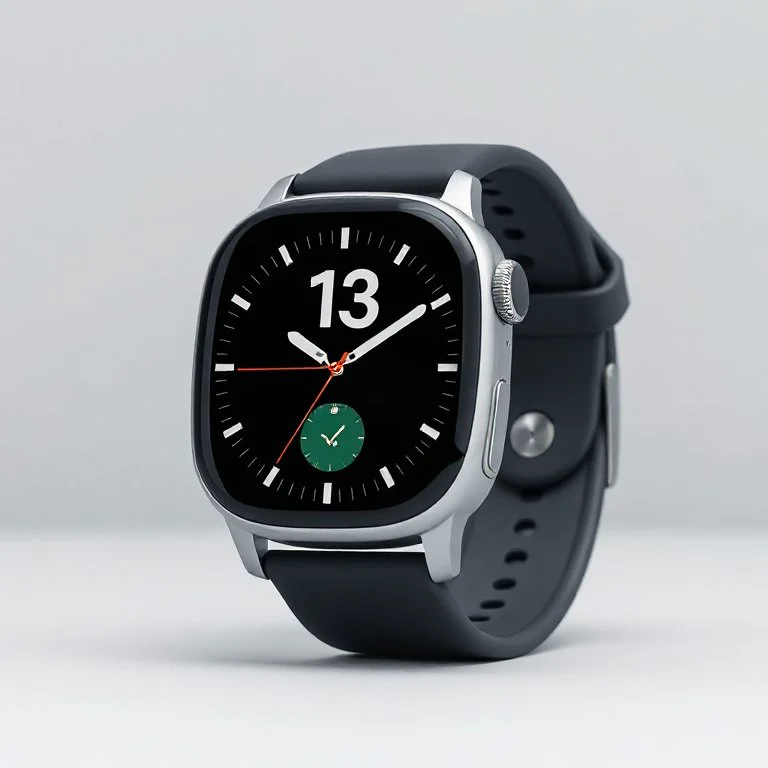 $249.00Meridian WatchMW-STL-42 · steel and graphite
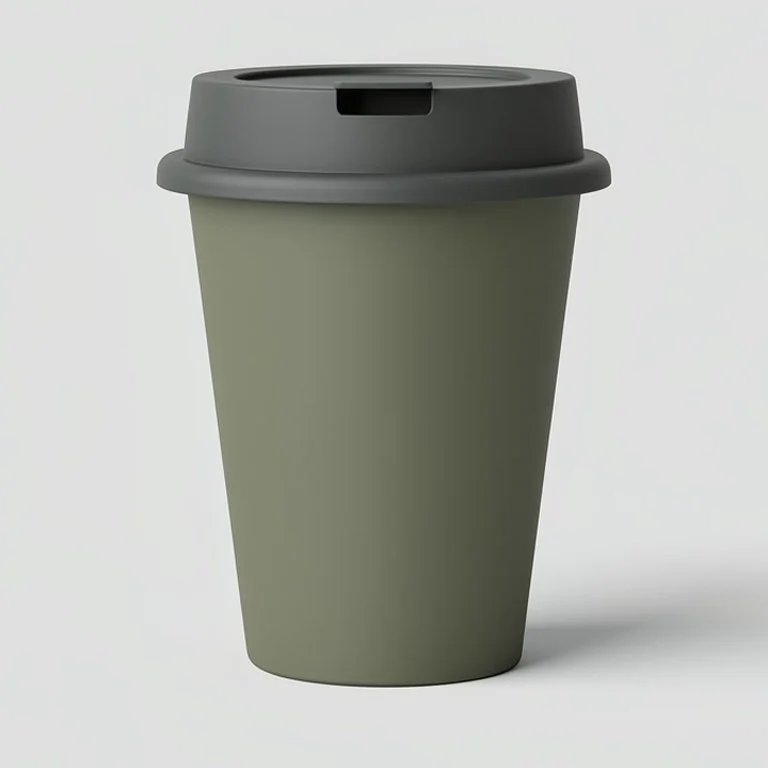 $18.00Olive Travel CupTC-OLV-350 · muted olive
 $12.00Message BottleMB-CLR-250 · clear
What the sample catalog became
The four rows of the CSV that ships with the app, rendered with the app's own looks and shown here as a centred square crop. Gemini Omni Flash on fal · 5 s · 720p 16:9. Hover a clip to compare it with the photo it started from.
One prompt, filled from every row
You direct the camera and the light once. Placeholders such as {{title}} and {{color}} take each product's values from its own columns, and the app shows every filled prompt before anything is rendered.
{{title}} in {{color}}, {{description}}. The camera makes one slow, steady quarter orbit around the product, which stays still at the centre of the frame on a seamless studio sweep.
Trail Tumbler in olive green, insulated tumbler with a flip lid that keeps coffee hot for six hours. The camera makes one slow, steady quarter orbit around the product, which stays still at the centre of the frame on a seamless studio sweep.
Left: the photo from the row's image column, used as the first frame. Right: the clip, look “Studio orbit”, Gemini Omni Flash on fal · 5 s · 720p 16:9.
How it works
Four steps in the app, with nothing paid for until you test a row.
01Load the catalog
Upload the CSV your store already exports. The app finds the image and name columns, and reads comma, semicolon or tab files.
02Pick a look
Start from one of the looks, then edit it. {{column}} placeholders fill from each product's own row.
03Test one product
Render a single row with the exact settings the batch will use, and check the clip before you pay for the rest.
04Render the range
Animate a run of rows. Clips stream in as they finish and each one is saved to your assets with the prompt that made it.
Four looks to start from
Each look directs one camera or light move, which is what a first-frame video model does reliably. Pick one in the app, then edit the words.
Studio orbit
A slow quarter orbit while a soft key light slides across the product.
Detail push-in
The camera moves in to a close-up of the material and finish.
Light sweep
The camera holds still while one band of light passes over the product.
Turntable
The product turns on a hidden turntable while the camera stays fixed.
Put the whole catalog in your own scene
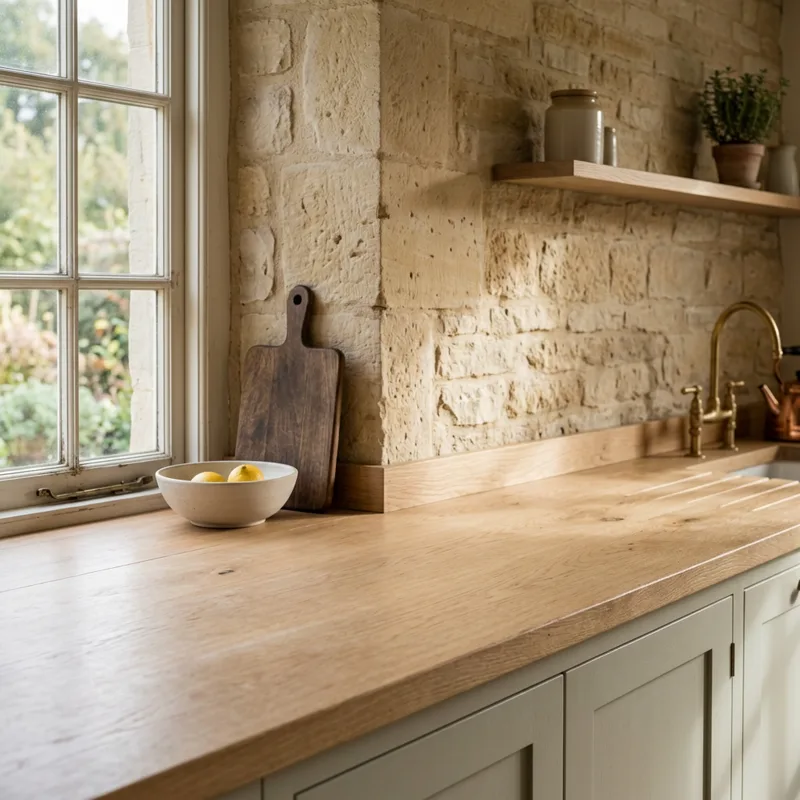
Add one background and one prop image for the catalog. Each product's photo stays image 1, and a reference-to-video model builds a new shot of it in your setting. Seedance 2.0 on fal, 5 s, 720p.
What to expect
What the app holds steady, and where a video model still needs your eye.
- The product's own photo is the first frame, so its shape, colour and packaging come from your catalog, not from a model's guess.
- Every row gets the same look, camera move, frame and length, so a range of clips sits together on a product grid.
- Each clip is saved as an asset with the prompt and settings that made it, ready to re-render one product without touching the rest.
- Models can soften small print and fine logos during a move. Test the row with the most detailed label first, and pick a calmer look if it drifts.
- Match the photo to the clip's shape. These samples are 16:9 clips made from square photos, so each one opens zoomed in and pulls back, and the tall bottle never fits the frame. Crop photos to the frame you render.
- A clean packshot on a plain background animates best. Busy lifestyle photos give the model more to reinterpret.
- Video is billed per second at your provider's list price. Four 5-second clips are 20 seconds of video, and the summary shows that total before you start.
Frequently asked questions
- What does the CSV need?
- A header row and one product per row, with a column that holds a link to each product's photo. A Shopify or WooCommerce export works as it is: leave the column fields blank and the app finds Image Src and Title. Rows without a usable image link are skipped and listed in the summary.
- Does the product stay the same in the video?
- The product photo is the first frame, and every look ends with an instruction to keep the shape, colour, material and markings unchanged. Video models still drift on small print and fine logos, which is why the app renders one test row before the batch.
- Which video models can I use?
- Any image-to-video model you have a key for, such as Gemini Omni Flash, Seedance, Kling or Wan. The references app takes a reference-to-video model. One model and one setting render the whole range.
- What does a batch cost?
- Video is billed per second by the provider, at its own list price, on your key. The summary shows how many clips and seconds a row range adds up to before you start it.
- What does the references app add?
- You upload one background and one decoration image for the whole catalog. Each product's photo stays image 1, and the model builds a new shot of the product in your scene with your props.
Animate your catalog
Download Studio for macOS, Windows or Linux, open Catalog Motion from the example apps, and test one row of your own CSV.