
Image Input
input
NodeTool Cloud is in alpha — run workflows in the browser, on your own keys.NodeTool Cloud is in alpha. Try it →
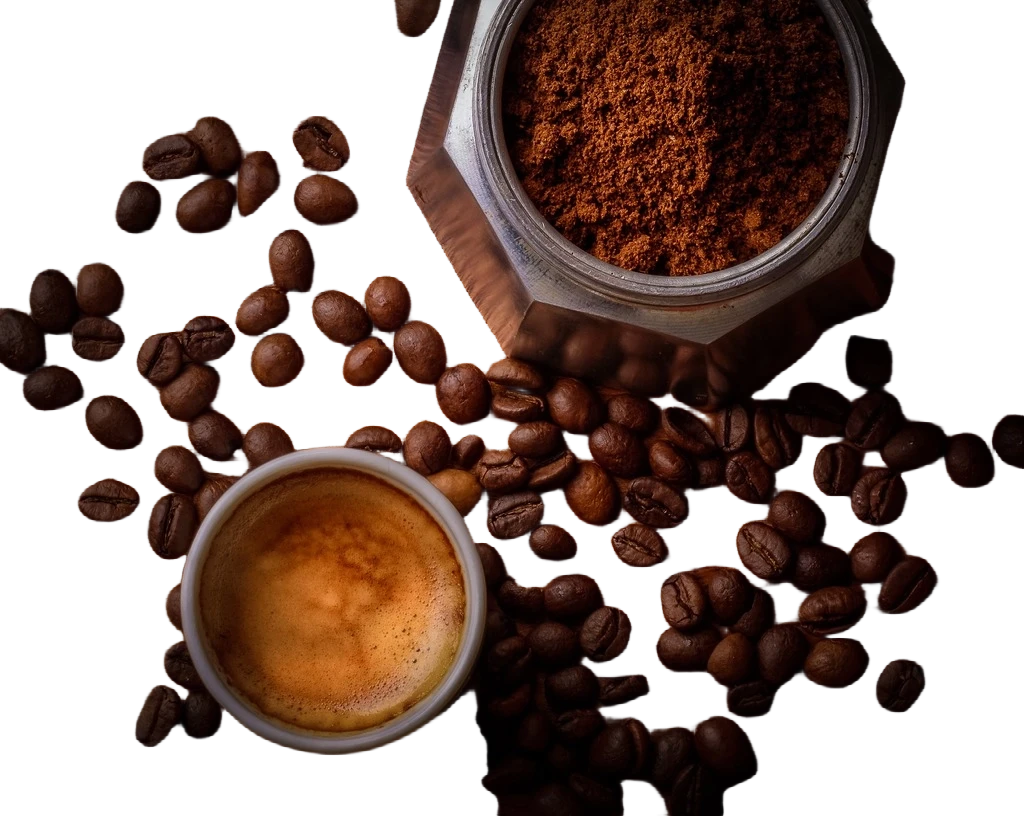
Remove the background and adjust edge softness without blurring the product. Set edge softness to 0 to keep the original cutout.
Input photo

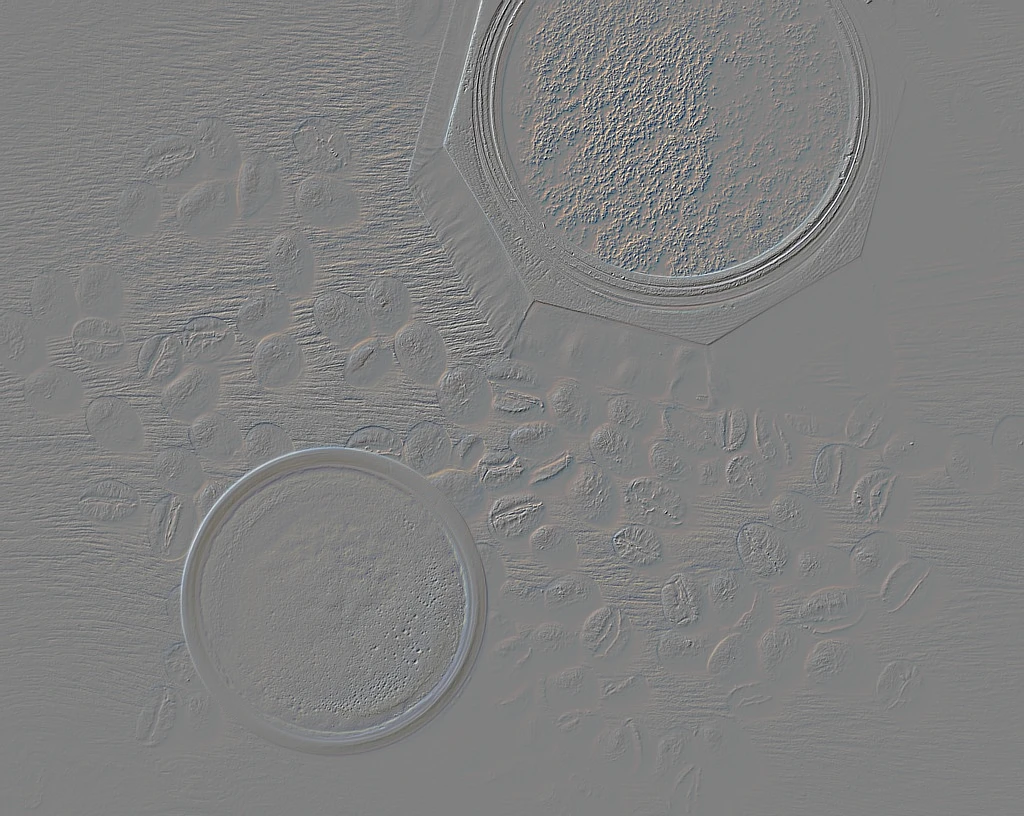
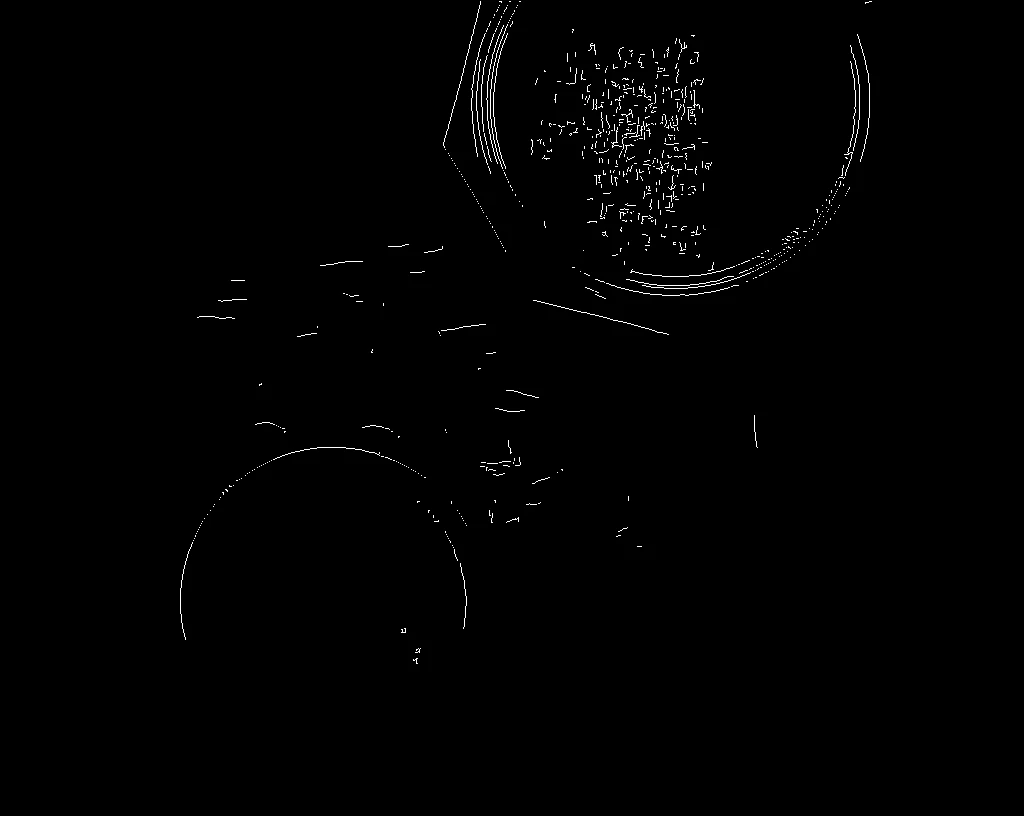
Output
Install the free desktop app for macOS, Windows, or Linux. It runs on your own machine, no account required to start.
Browse the built-in template library inside Studio and open this workflow onto the canvas. Every node is already wired up.
Connect the providers this workflow uses (Gaussian Blur, Image Input, Merge). Bring your own keys — you pay the provider directly.
Hit Run to execute the graph and watch results stream in. Swap models, edit prompts, or rewire nodes to make it yours.
Explore a related recipe with guided setup and editable storyboards or scripts.
Free, open source, and yours to run. Download Studio, open the template, and run it with your own keys.






.jpg)